- Published on
Stop Getting Your Emails Bounced: How to Compress PDFs and Images Like a Pro
- Authors
- Name
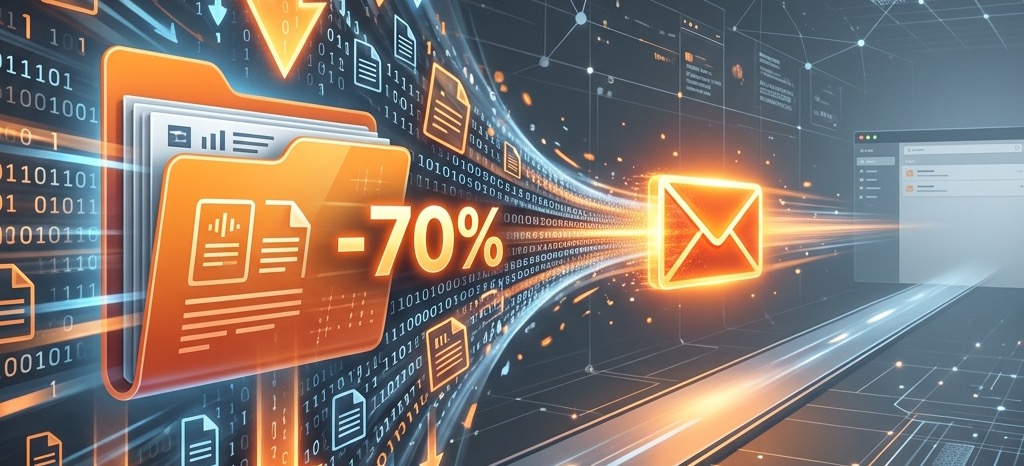
The "File Too Large" Nightmare
We’ve all been there: you’ve spent hours perfecting a report, a portfolio, or a job application. You hit 'Send' on that critical email, only to receive a frustrating automated message seconds later: "Delivery Status Notification (Failure) - Message too large."
Most email providers (like Gmail or Outlook) have a strict attachment limit—usually around 20MB to 25MB. A single high-quality photo from a modern smartphone or a PDF with several images can easily exceed this limit.
The good news? You don't have to delete pages or settle for blurry images. You just need to know how to compress your files like a pro.
Why Are Your Files So Big?
Before we fix the problem, it helps to understand why it’s happening:
- High-Resolution Images: Modern cameras capture incredible detail, but those millions of pixels take up a lot of digital space.
- Unoptimized PDFs: When you save a document as a PDF, it often includes high-resolution versions of every image and font, even if they aren't necessary for viewing on a screen.
- Metadata: Hidden information about how and when a file was created can add unnecessary bulk.
How to Compress Without Losing Quality
The goal of professional compression is to reduce the file size while keeping the content looking sharp. Here is the best way to handle the two most common file types:
1. Compressing PDF Documents
PDFs are the standard for professional documents, but they can be notoriously heavy.
- The Pro Tip: Use a dedicated PDF optimizer that removes redundant data and downsamples images to a web-friendly resolution (usually 72 or 150 DPI).
- Try our tool: Our PDF Compressor is designed to shrink your documents by up to 80% without noticeably affecting text or image clarity.
2. Compressing Images (JPG, PNG, WebP)
If you're sending photos, you don't need "print-ready" quality for an email.
- The Pro Tip: Convert high-resolution photos to a more efficient format like WebP, or use "lossy" compression which removes data that the human eye can't even see.
- Try our tool: Use the Image Compressor to quickly resize and optimize your photos before attaching them.
A Better Way to Send Files
If you find yourself constantly battling file size limits, here is a simple workflow to follow:
- Audit your file: Check the size before sending. If it’s over 15MB, it’s time to compress.
- Compress first: Use a browser-based tool (like the ones below) so you don't have to install heavy software.
- Check the result: Open the compressed file to make sure it's still readable.
- Send with confidence: No more bounced emails or frustrated recipients.
Tools to Help You Succeed
We’ve built free, privacy-first tools to handle these exact problems directly in your browser:
- PDF Compressor: Perfect for resumes, legal docs, and reports.
- Image Compressor: Ideal for portfolios, headshots, and product photos.
- Image to PDF: Combine multiple photos into a single, optimized PDF document.
Conclusion
Don't let a technicality like "file size" stand in the way of your productivity. By taking 30 seconds to optimize your attachments, you ensure that your work is seen, your applications are received, and your communication remains professional.